Menu screen
The menu screen is the main screen of the Talkid device. It is only visible once the Talkid is paired with the Talkid app.
From here, your child can choose a contact or group, add contacts, create a group, open badges, or open settings.
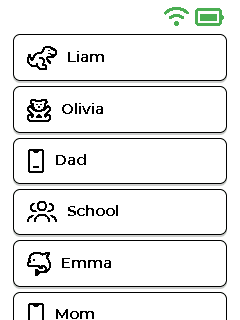
Main menu with contacts, groups, and device options.
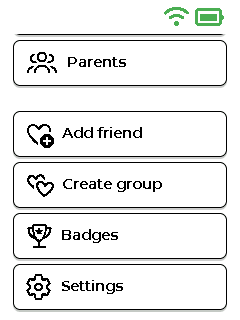
Bottom of the main menu showing additional options.
What you see
At the top you always see status icons, including battery and Wi-Fi.
Below that is a list. Use the up and down buttons to move through the list. Press OK to select an item.
Options on the menu
- Friend or contact name - Opens the message screen for that person. If the contact request is still waiting, Talkid shows the request screen instead.
- Group name - Opens the message screen for that group.
- Add friend - Starts the add-friend flow.
- Create group - Starts group creation.
- Badges - Opens the badges screen.
- Settings - Opens the settings screen.
Contact icons
Talkid may show a small icon beside a contact or group.
- Friend. Friends can replace this default icon with an avatar of their choice.
- Offline friend.
- Friend using a smartphone. Smartphones are never shown as offline.
- Muted friend.
- Group. Groups do not have avatars.
- New messages.
- Friend request sent, waiting for a response.
- Friend request received, waiting for your response.
Helpful tips
Tip
To start a live call, choose an accepted friend or group, then press and hold the talk button (the Push-To-Talk, or PTT, button - the big orange button on the right-hand side of the Talkid).
Note
Pairing is not started from the menu screen. If Talkid is not paired yet, first-time setup leads to the pairing code screen.